Plans, the free trial and billing
What each plan includes, how the free trial and its one test claim work, complimentary plans, when your card is charged, how to change plans, download invoices and tax receipts, cancel, and how the 1-Lead Recovery Guarantee applies.
Checked against the product on · 6 min read
What each plan includes
| Starter | Shield | Agency | |
|---|---|---|---|
| Monthly price | $129 | $249 | $499 |
| Yearly price (two months free) | $1,290 | $2,490 | $4,990 |
| Repeat callers, hang-ups, billed missed calls, spam messages | Yes | Yes | Yes |
| Credit claims sent to Google (Co-Pilot or Autopilot) | Yes | Yes | Yes |
| AI-reviewed calls a month (with the Audio Bridge) | 40 | Unlimited | Unlimited |
| Quote and timestamp on every claim | Yes | Yes | Yes |
| Instant replies to message leads | Yes | Yes | Yes |
| Spam Shield automatic pausing | Alerts only | Yes | Yes |
| Day-28 escalation packs | No | Yes | Yes |
| Good-lead ratings that train Google’s bidding | No | Yes | Yes |
| Google Ads accounts | No set limit | No set limit | 10 included, then $39/month each |
| Monthly bookkeeper reconciliation spreadsheet | No | No | Yes |
When Starter reaches its 40 reviewed calls in a billing period, new calls wait until the next period; everything that needs no recording keeps working. The Overview shows the count and an upgrade button.
The free trial
- Pick a plan in Settings > Plan and billing (or “Unlock & claim these credits” on the Overview). Stripe Checkout takes your card; nothing is charged yet.
- The trial lasts 14 days and includes one test claim so you can see Google’s answer before paying.
- Other ready claims are held. Settings shows how many, with “Start my plan now & send held claims”, which ends the trial and charges your card today.
- Unless you cancel first, the plan starts automatically when the trial ends and the held claims go out within minutes. One trial per business, and none after free months from CallWarden.
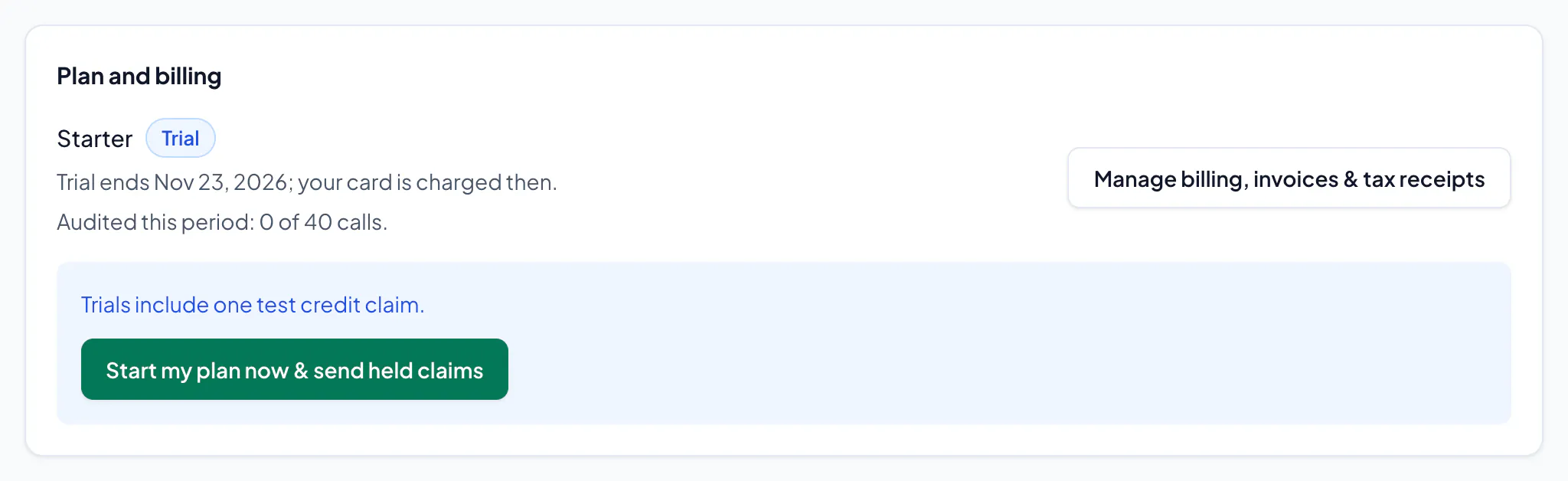
- Your plan, and the day the trial ends and your card is charged.
- Start my plan now & send held claims ends the trial today, charges your card and sends the claims it held.
- Manage billing, invoices & tax receipts opens Stripe’s billing portal.
Complimentary plans and free months
CallWarden sometimes gives a business free time on a plan, for example as one of our first customers. It comes one of two ways:
- A complimentary plan. No card needed. Settings > Plan and billing shows the plan, marked Complimentary, and the date it ends. Everything in the plan works, including claims (there’s no test-claim limit). We email you when it starts and a week before it ends. To keep the plan afterwards, choose “Add a card” any time before the end date: you won’t be charged until the free period is over. If you don’t, the account returns to the free audit when it ends.
- Free months on your subscription. You subscribe as usual and the first months cost $0; billing starts on its own afterwards. Settings shows the offer above the plans until you use it.
Changing plans, cards, invoices and tax
Settings > Plan and billing > “Manage billing, invoices & tax receipts” opens Stripe’s billing portal. There you can switch between Starter, Shield and Agency, move to yearly billing, update your card and billing address, and download every invoice. Plan changes are prorated by Stripe. Sales tax is added where the law requires it; add your tax ID in the portal if you have one.
Only owners and admins can change the plan. Members and bookkeepers see the plan but not the buttons.
If a payment fails
Stripe retries the card and CallWarden emails you. A red banner in the app offers “Update card”. Your plan and its features stay on while Stripe retries; if the payment stays unpaid, the subscription ends and the account returns to the free audit.

- Stripe couldn’t charge your card and is retrying it.
- Update card opens Stripe’s billing portal, where you can change it.
Cancelling
Settings > Plan and billing > “Cancel subscription”. You keep the plan until the end of the period you’ve paid for and aren’t charged again. Your history, settings and connections stay, and the free audit keeps running, so you can come back any time. You can also email support to cancel.
The 1-Lead Recovery Guarantee
If Google doesn't approve at least one credit claim CallWarden sends for you in your first 60 days, we refund your first month. An approval counts on the day Google gives it. Google makes an approved credit available in about two months. It applies once per business, to its first paid subscription. Google decides every credit, so this is the one promise CallWarden makes about outcomes. We refund the first month in Stripe when an account qualifies; email support if your first 60 days have passed with no approved claim and you haven’t heard from us.
Frequently asked
Is the 30-day audit really free?
Yes. Connecting Google Ads and seeing what's flagged costs nothing and needs no card. A plan is needed to send claims to Google, transcribe calls, pause campaigns during floods and reply to message leads.
What happens when the trial ends?
Your card is charged for the plan you chose and the claims held during the trial go to Google within minutes. Cancel before the trial ends and you're not charged.
Where do I get an invoice or tax receipt?
Settings > Plan and billing > Manage billing opens Stripe's billing portal with every invoice and receipt, your payment method, and plan changes.
Still stuck?
Email us and an engineer replies within one business day. Include the lead ID or the Google Ads account name and we can look at exactly what happened.