Getting started: the two-step connection and your first audit
Sign in with Google, connect the Google Ads account that runs your Local Services Ads, and read your free 30-day audit. About two minutes, from any device.
Checked against the product on · 4 min read
Step 1: Sign in with Google
Click any “Run my free 30-day audit” button and choose “Continue with Google”. Google asks only for your name and email address. CallWarden creates your workspace and takes you to the dashboard. You can also sign in later from callwarden.ai/login.
Step 2: Connect Google Ads
Right after you sign in, CallWarden opens this step for you. Click “Continue to Google Ads”: Google shows its consent screen for Google Ads access (the only permission Google offers for Local Services leads) for the Google login you just used. If your Local Services ads run under a different Google login, such as a work or agency manager account, click “Choose another account” instead and pick it on Google’s screen; there’s no need to sign out of CallWarden. If you closed the step, click “Connect Google Ads” on the dashboard. Then pick the accounts to monitor:
- Business owners: you’ll usually see one account. Leave it checked and click “Start monitoring”.
- Agencies: a manager login lists every client account it can reach. Check the ones that run Local Services Ads. Agency plans include ten accounts.
- Test accounts are marked and have no real leads. Accounts without a Local Services campaign show a notice after the first check.
Google words its consent screen broadly because Google Ads access is a single permission. What CallWarden does with it is narrower: the Budget Firewall blocks every change to budgets, bids and targeting.
What happens next
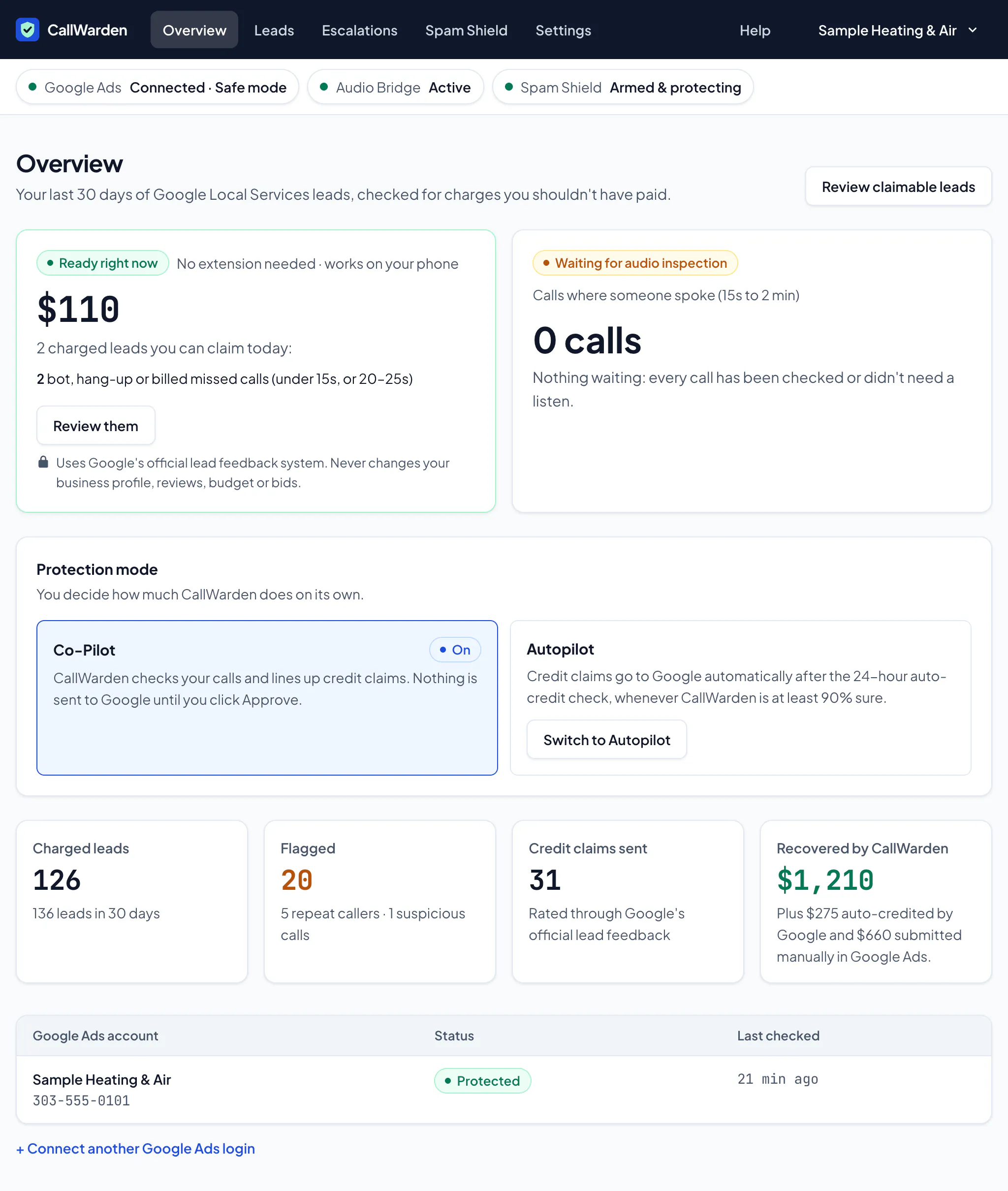
- Google Ads: Connected · Safe mode. The three status pills are on every page; click one to go to its settings.
- Ready right now: what you can claim today, from any device, with what makes up the amount.
- Waiting for audio inspection: calls where someone spoke, which need a listen before CallWarden can tell.
- Each connected account shows Protected and when CallWarden last checked it.
If an account shows “Can’t reach Google right now”, the Google login lost access or Google is rate-limiting. Reconnect from Settings; your history stays.
If the audit finds nothing
Some accounts are clean, and that’s good news. CallWarden keeps checking new leads as they arrive, and the Spam Shield and instant replies to message leads (off until you turn them on in Settings) are worth having even when nothing is owed today. If you expected leads and see none, check that the connected login can open the Local Services leads in Google Ads, and that you picked the right account on the “Choose accounts” page (Settings > Google Ads connections > Choose accounts).
Next
- Understanding your 30-day audit: what each flag means.
- Plans, the trial and billing: how to start claiming.
Frequently asked
Which Google account should I sign in with?
Any Google account works for sign-in. For step 2, use the Google login that can open your Local Services leads in Google Ads: the account owner's login, or an agency manager login with access to the client account.
Does the free audit change anything in my Google Ads account?
No. The audit only reads your leads. Nothing is sent to Google until you start a plan and approve a claim (or turn on Autopilot).
How long does the first check take?
Usually a few minutes. CallWarden reads the last 30 days of leads first, then keeps checking for new leads around the clock.
Still stuck?
Email us and an engineer replies within one business day. Include the lead ID or the Google Ads account name and we can look at exactly what happened.