The Chrome Audio Bridge: setup and troubleshooting
The optional Chrome extension that lets CallWarden check call recordings. How to install and pair it in 30 seconds, what it can and can't do, and what to do when it shows offline or asks you to sign in to Google.
Checked against the product on · 5 min read
Install and pair (30 seconds)
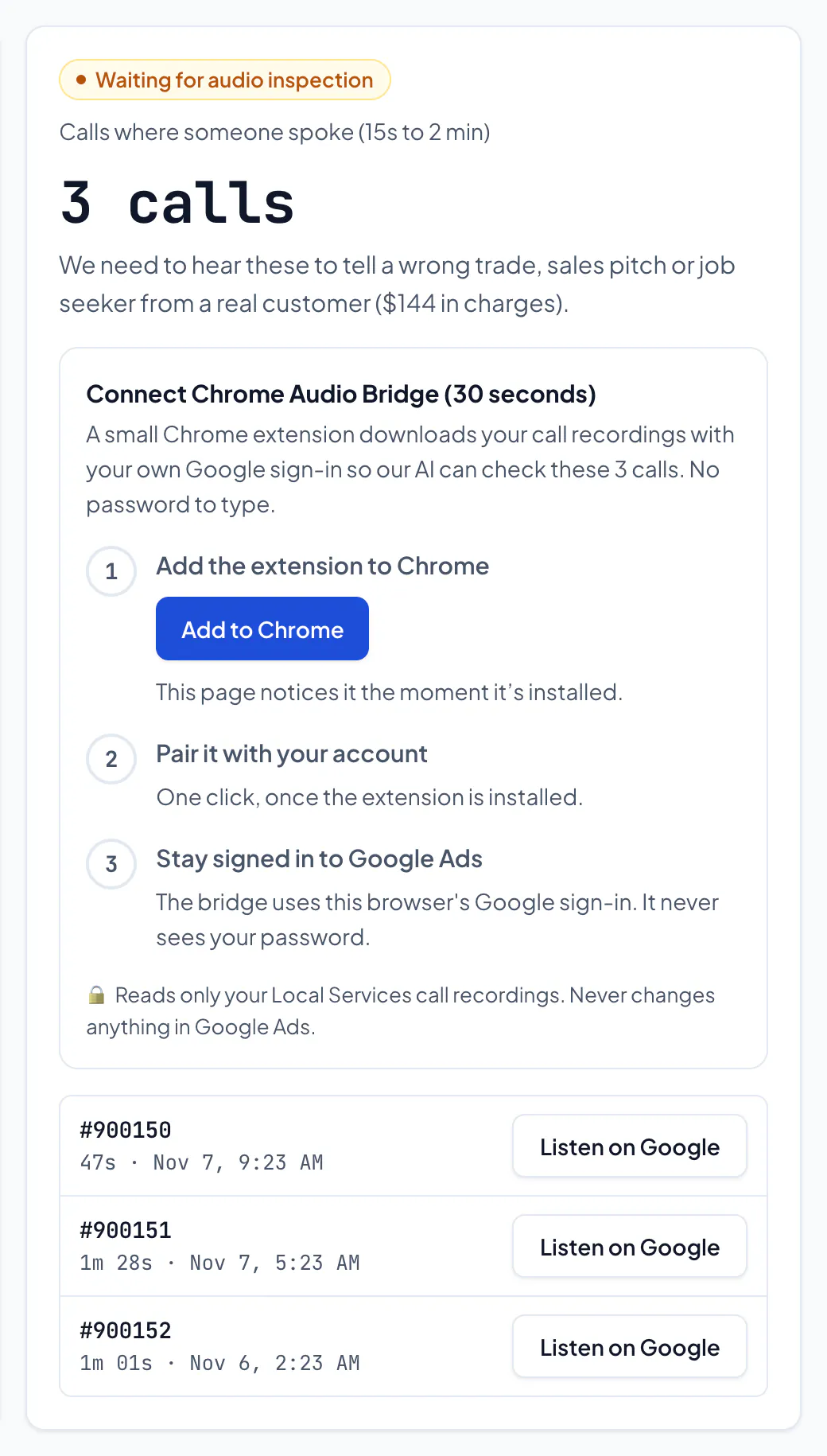
- Add to Chrome opens the Chrome Web Store listing.
- Back on the dashboard, pairing takes one click once the extension is installed.
- Keep that Chrome signed in to the Google account that can open your Local Services leads.
- Until then, each waiting call has Listen on Google.
On a phone, tablet or another browser, the card offers to email you the desktop setup link instead. Until then, tap any waiting call to listen on Google and decide yourself.
What it does, and doesn’t
- It downloads only the recordings CallWarden asks for, for your own leads, and uploads each one directly to CallWarden’s private storage. We check the file’s size and fingerprint before transcribing it.
- It talks only to callwarden.ai and that storage. It can’t change anything in Google Ads.
- The transcript is masked before our AI reads it (card numbers, Social Security numbers, phones, emails, addresses) and names are masked before anything is stored. See how we handle personal data.
Troubleshooting
| What you see | What it means | What to do |
|---|---|---|
| Sign in to Google (yellow banner) | The bridge reached Google’s sign-in page instead of a recording. | In that Chrome, open your Local Services leads in Google Ads and sign in, then click “I’ve signed in” or wait for the next check. |
| Offline (last seen more than 24 hours ago) | Chrome isn’t running, the extension was removed, or the computer is asleep. | Open Chrome on the paired computer. If the extension is gone, reinstall it and pair again from Settings > Chrome Audio Bridge. |
| Not set up | No browser has paired yet. | Follow the steps above, or email yourself the desktop link from the dashboard. |
| Couldn’t download (on a lead) | Google returned no recording for that call, or the download failed repeatedly. | Listen on Google from the lead page. Not every call has a recording. |
| Waiting for your browser bridge (on a lead) | The recording is queued for the next check. | Nothing. Checks run every 2 minutes while Chrome is open; “Sync now” on the dashboard skips the wait. |

- The Audio Bridge reached Google’s sign-in page instead of a recording.
- Open my Google LSA leads in that Chrome and sign in.
- Then click I’ve signed in, or wait for the next check.

- When the paired Chrome last checked in.
- Reconnect the Audio Bridge opens its settings, where you can pair again.
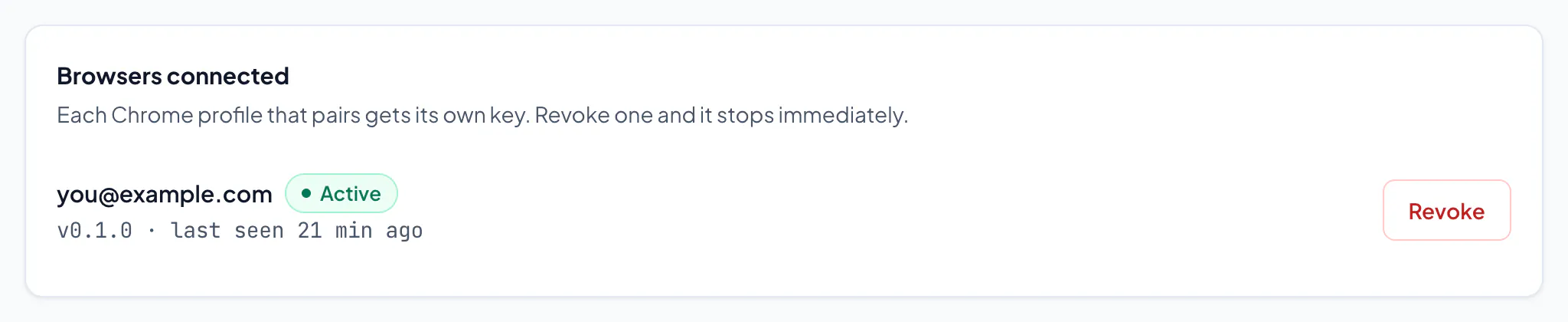
- Each paired Chrome profile, with its status and when it last checked in.
- Revoke stops that browser immediately.
Frequently asked
Do I need the extension to use CallWarden?
No. Repeat callers, hang-ups, billed missed calls, spam messages, the Spam Shield and instant replies all work without it. It only adds AI review of calls where someone spoke.
Does the extension see my Google password or read my cookies?
No. It checks whether Chrome is signed in to Google by looking at cookie names only, never their values, and it never sees a password. It downloads recordings the same way your browser does when you press play in Google Ads.
Why does Google need to be signed in on that computer?
Google only plays Local Services call recordings to a browser signed in to an account with access to the Ads account. That is why recordings can't be fetched by a server and why the bridge runs in your Chrome.
Still stuck?
Email us and an engineer replies within one business day. Include the lead ID or the Google Ads account name and we can look at exactly what happened.