How the Spam Shield (bot-flood circuit breaker) works
How CallWarden detects a spoofed call flood, pauses your Local Services campaigns, alerts you, and restores every campaign exactly as it was. Defaults, alert-only mode and tuning.
Checked against the product on · 6 min read
1. Detection
Spoofed call floods look the same everywhere: a burst of calls that nobody could have placed on purpose. Three kinds of call count toward a trip:
| Call | Default | Why it counts |
|---|---|---|
| Hung up in seconds | Under 5 seconds | Robodialers hang up as soon as the line connects. |
| Out-of-area caller | 25 seconds or less, from an area code you don’t serve | Only counted when you list the area codes you serve. |
| Missed call Google still bills | 20 to 25 seconds | Since October 2026 Google charges once a call rings 20 seconds. Floods are tuned to ring just past it. |
When 5 such calls land within 10 minutes, the Spam Shield trips. You can require missed-band calls to be corroborated by another signal, so a storm of ordinary missed calls during a busy hour doesn’t pause your ads. Each trip also creates one attack log on the Escalations page, ready to paste into a Google support request.
2. Pausing
In auto-pause mode, CallWarden reads the live status of each Local Services campaign in the affected account, records it, and sets the campaign to Paused. That is the only field it changes, and Paused or Enabled are the only values it can set: the Budget Firewall refuses anything else before it leaves our servers.
If Google rejects the pause (for example, the connected login lost access), you get a “couldn’t pause your ads” alert instead, with the attack log, so you can act in Google Ads yourself.
3. Alerts
A trip is urgent: it goes out by email and to every team channel right away, through quiet hours. The dashboard shows a red banner with a Resume button and the attack log until the campaigns are back on.
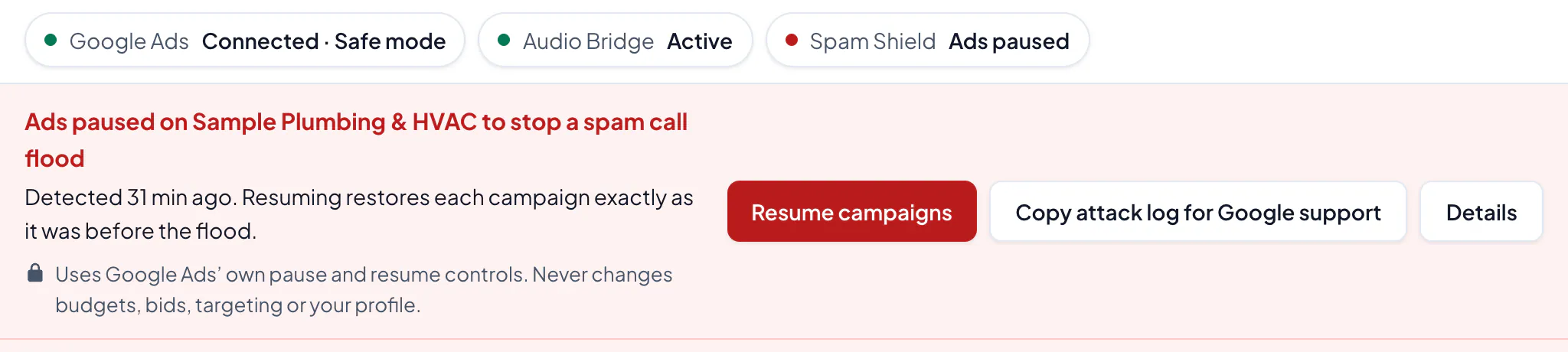
- The Spam Shield pill turns red and reads Ads paused.
- Resume campaigns puts every campaign back exactly as it was.
- Copy attack log for Google support copies the calls, times and signals to paste into a support request.
- Details opens the flood’s page.
4. Resuming
- Resume now: the banner, the Spam Shield page or a team-channel link. Each campaign goes back to exactly the status it had before the trip. A campaign you had paused yourself stays paused.
- Automatic resume: optional, after a number of minutes you choose in Settings.
- Cooldown: after a trip, another pause can’t happen for 60 minutes by default, while the first event keeps absorbing calls.
- False alarm: mark a trip as a false alarm on its detail page. It stays in your history so you can tune the settings.
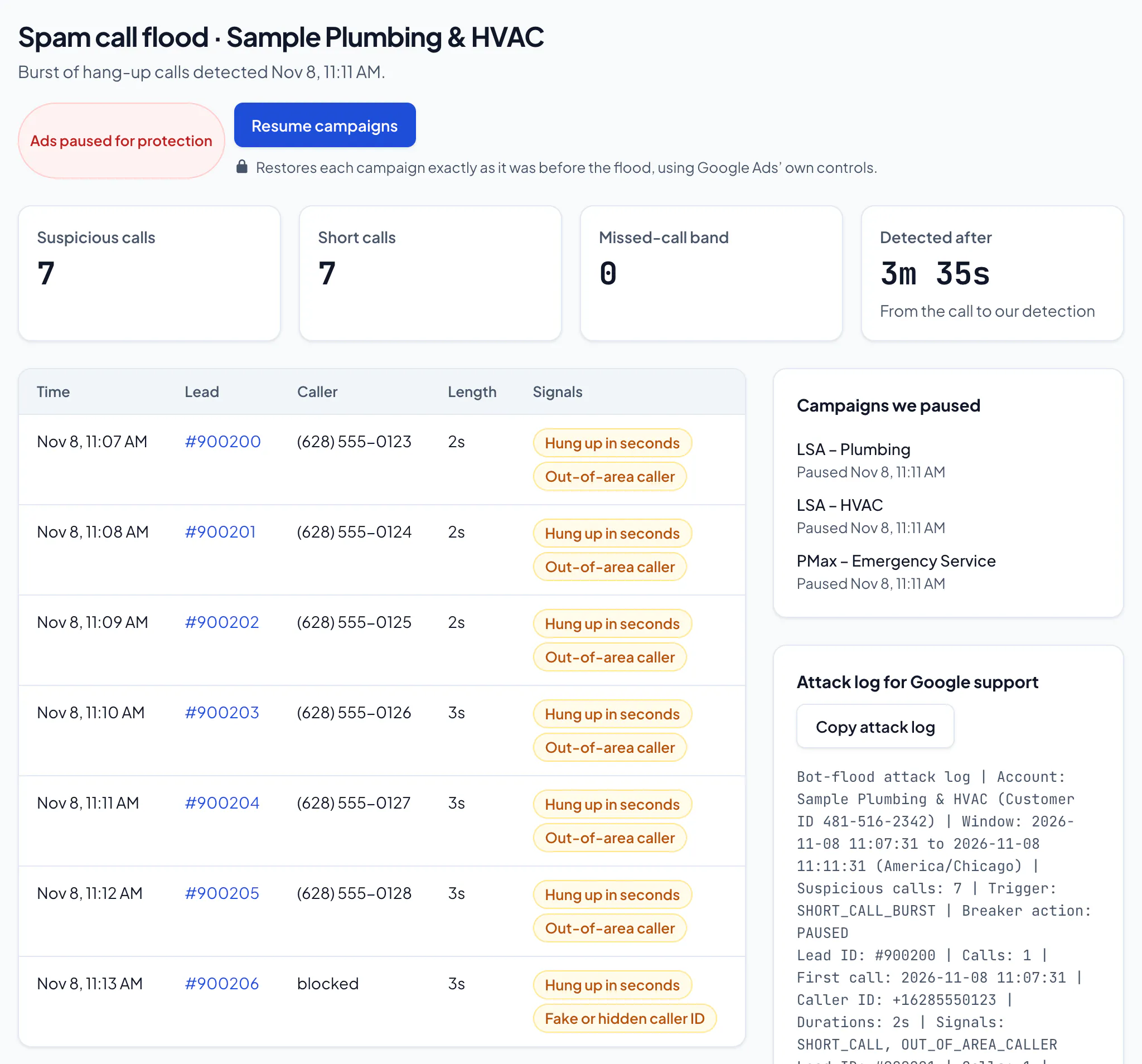
- Resume campaigns, the same as on the banner.
- Every call that counted toward the flood, with why it counted.
- The campaigns CallWarden paused, and when. After you resume, each one shows when it was restored.
Tuning it
Every setting is per Google Ads account in Settings > Spam Shield. The Spam Shield page lists every trip, what was paused and when it was resumed, with the attack log.
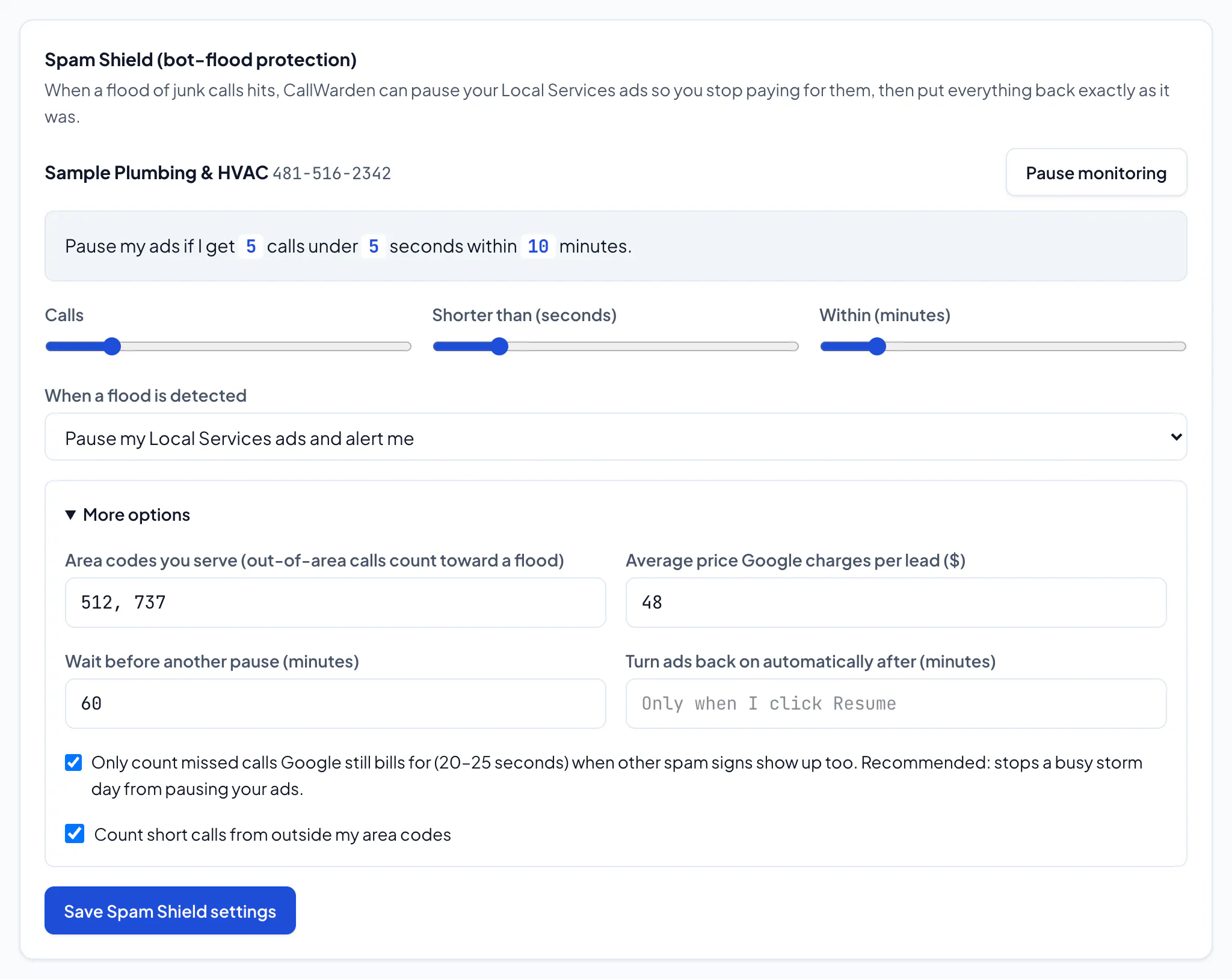
- The trip rule in plain words. The sliders below change it.
- When a flood is detected: pause your Local Services ads and alert you, only alert you, or do nothing.
- More options: the area codes you serve, your average lead price, the wait before another pause, automatic resume, and which missed and out-of-area calls count.
- Pause monitoring stops CallWarden checking this Google Ads account at all (new leads and spam floods) until you click Resume monitoring.
Frequently asked
Which campaigns does the Spam Shield pause?
Local Services campaigns, and Performance Max campaigns that have Local Services enabled, in the account that was hit. Nothing else in the account is touched.
Can it pause a campaign I had already paused myself?
No. It records each campaign's status before pausing and only re-enables campaigns it paused. One you paused yourself stays paused when it resumes.
Can I see what it would do before letting it pause anything?
Yes. Set the mode to alerts only: you get the same alerts and attack log, and nothing is paused. Automatic pausing is included in Shield and Agency.
Still stuck?
Email us and an engineer replies within one business day. Include the lead ID or the Google Ads account name and we can look at exactly what happened.